> ## Documentation Index
> Fetch the complete documentation index at: https://botpress-update-integrations.mintlify.site/llms.txt
> Use this file to discover all available pages before exploring further.
# Send reminders to conversations
You can have your bot send a message to all your users' active conversations at regular intervals. This is useful if you want to send reminders, notifications, or other time-sensitive messages to your users.
You will need:
* A [published bot](/get-started/quick-start)
## Step 1: Setup your Personal Access Token
Since you need to use the Botpress API to send a reminder to all users, you need to set up a Personal Access Token (PAT) for authentication.
### Create the token
1. In the upper-right corner of your workspace, select your profile picture.
2. Select **Account Settings > Access Tokens > Personal access tokens** > **Generate new token.**
3. Enter a note to remember the token's purpose—like "Reminders".
4. Select **Generate Token**.
5. Copy the generated token and store it somewhere—once you leave this page, you won't be able read it again.
### Store the token in a variable
Next, [create a configuration variable](/studio/concepts/variables/scopes/configuration#create-a-configuration-variable) called `PERSONAL_ACCESS_TOKEN` and store your token in it. This will let you access the token in code.
## Step 2: Add a Fixed Schedule Trigger
Add a [Fixed Schedule](/studio/concepts/cards/fixed-schedule) Trigger to your bot's [Workflow](/studio/concepts/workflows). This will make sure your reminder sends on a set interval.

 You can configure the Trigger to execute at whatever interval you'd like.
## Step 3: Add an Execute Code Card
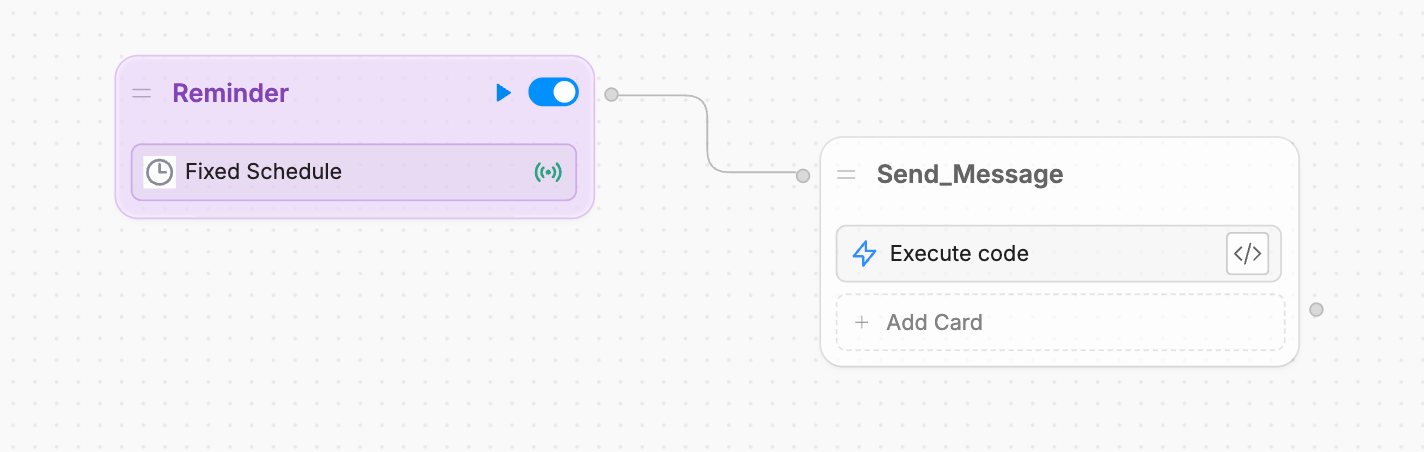
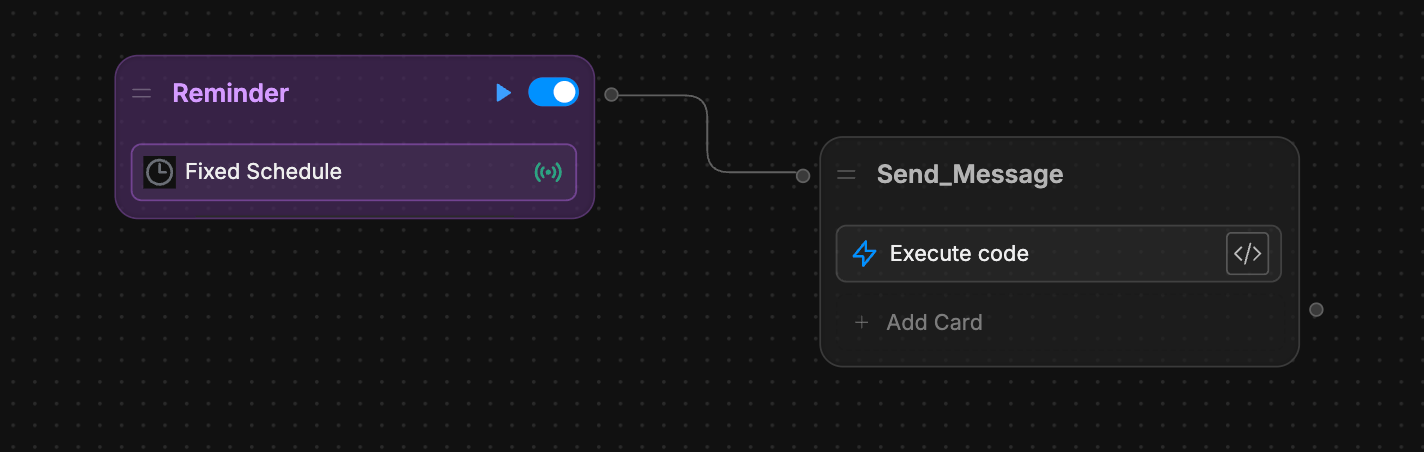
Connect an [Execute Code](/studio/concepts/cards/execute-code) Card to your Trigger:
You can configure the Trigger to execute at whatever interval you'd like.
## Step 3: Add an Execute Code Card
Connect an [Execute Code](/studio/concepts/cards/execute-code) Card to your Trigger:
 ## Step 4: Apply the custom code
Paste the following code into the Card's configuration:
```javascript theme={"theme":{"light":"light-plus","dark":"dark-plus"}}
const botId = '' // Replace with your actual bot ID (found in the Studio URL)
const botpressApiUrl = 'https://api.botpress.cloud/v1/chat/conversations'
const botpressApiKey = env.PERSONAL_ACCESS_TOKEN
const response = await axios.get(botpressApiUrl, {
headers: {
Authorization: `Bearer ${botpressApiKey}`,
'x-bot-id': botId
}
})
// Optional: Log the list of conversations
console.log(response.data)
response.data.conversations.forEach((conversation) => {
const conversationId = conversation.id
client.createMessage({
conversationId,
userId: botId,
tags: {},
type: 'text',
payload: {
text: "Don't forget to drink water!", // Your reminder message
},
})
})
```
Be sure to replace the placeholder value for `botId` with your actual bot ID. To find your bot ID:
1. Open your bot in the Studio.
2. Get the bot ID from the URL's path. For example:
`https://studio.botpress.cloud/THIS_IS_YOUR_BOT_ID/`
Once you've published the latest version of your bot, it will send reminders to all active conversations at the specified interval.
## Step 4: Apply the custom code
Paste the following code into the Card's configuration:
```javascript theme={"theme":{"light":"light-plus","dark":"dark-plus"}}
const botId = '' // Replace with your actual bot ID (found in the Studio URL)
const botpressApiUrl = 'https://api.botpress.cloud/v1/chat/conversations'
const botpressApiKey = env.PERSONAL_ACCESS_TOKEN
const response = await axios.get(botpressApiUrl, {
headers: {
Authorization: `Bearer ${botpressApiKey}`,
'x-bot-id': botId
}
})
// Optional: Log the list of conversations
console.log(response.data)
response.data.conversations.forEach((conversation) => {
const conversationId = conversation.id
client.createMessage({
conversationId,
userId: botId,
tags: {},
type: 'text',
payload: {
text: "Don't forget to drink water!", // Your reminder message
},
})
})
```
Be sure to replace the placeholder value for `botId` with your actual bot ID. To find your bot ID:
1. Open your bot in the Studio.
2. Get the bot ID from the URL's path. For example:
`https://studio.botpress.cloud/THIS_IS_YOUR_BOT_ID/`
Once you've published the latest version of your bot, it will send reminders to all active conversations at the specified interval.