> ## Documentation Index
> Fetch the complete documentation index at: https://botpress-update-integrations.mintlify.site/llms.txt
> Use this file to discover all available pages before exploring further.
# Using custom logic with AI
export const GoodToKnow = ({children}) => {
return
{children}
;
};
Having a custom greeting is great, but we still want the bot to respond with AI after displaying it. Let's connect the Standard Node to the Autonomous Node:
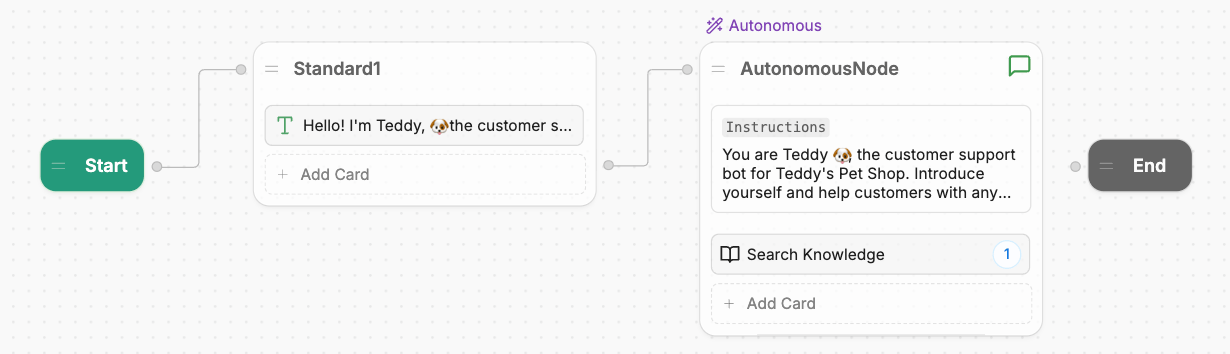
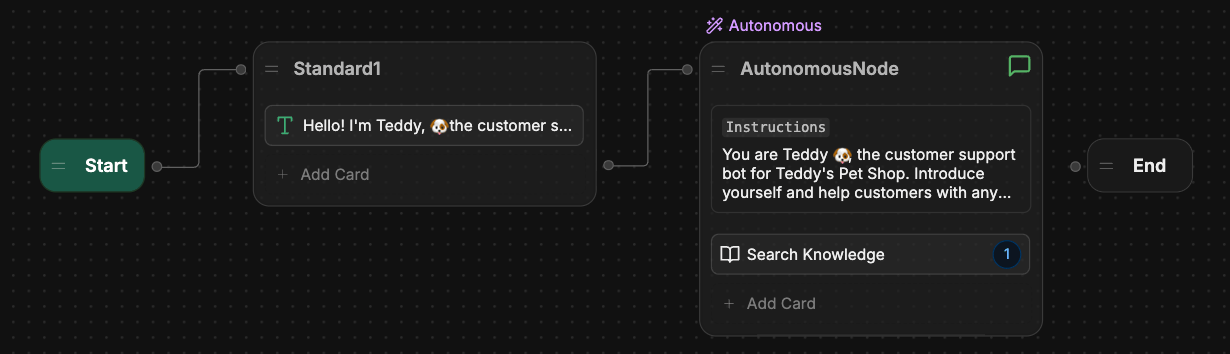 Now, when you test in the Emulator, your bot begins the conversation with your hard-coded message. Then, the Autonomous Node takes the wheel for any further responses:
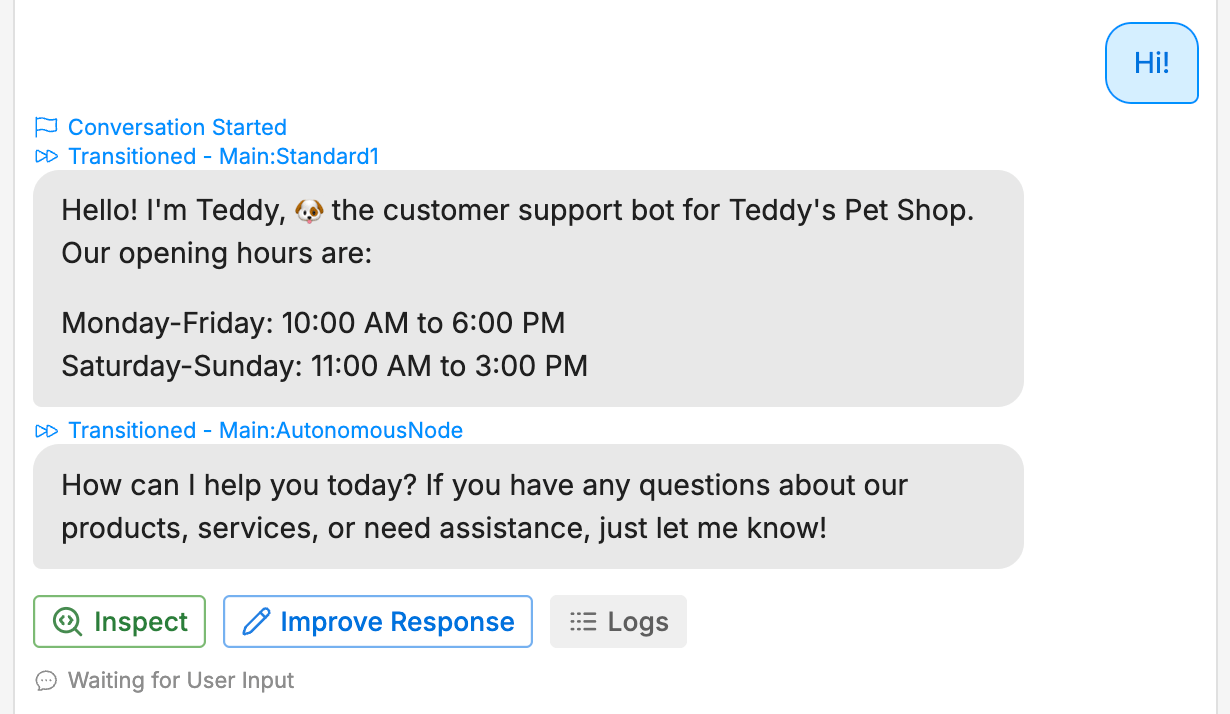
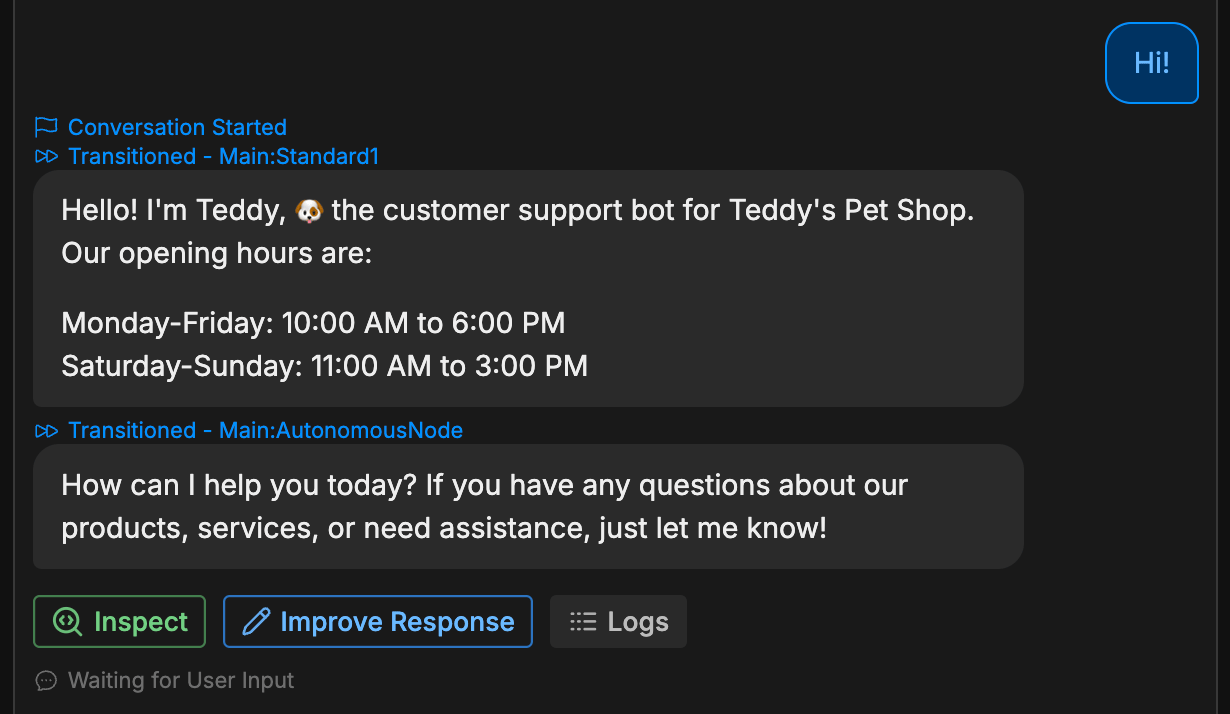 You can use any combination of Standard Nodes and Autonomous Nodes to customize your bot's behaviour.
**Why can't I transition from an Autonomous Node?**
You may have noticed that the Autonomous Node doesn't have a right edge, meaning you can't transition from an Autonomous Node to another Node.
This is intentional—since the Autonomous Node uses AI to generate responses in a loop, it needs a different approach for transitioning out of that loop. We'll cover this in a later section, so don't worry about it for now.
You can use any combination of Standard Nodes and Autonomous Nodes to customize your bot's behaviour.
**Why can't I transition from an Autonomous Node?**
You may have noticed that the Autonomous Node doesn't have a right edge, meaning you can't transition from an Autonomous Node to another Node.
This is intentional—since the Autonomous Node uses AI to generate responses in a loop, it needs a different approach for transitioning out of that loop. We'll cover this in a later section, so don't worry about it for now.